
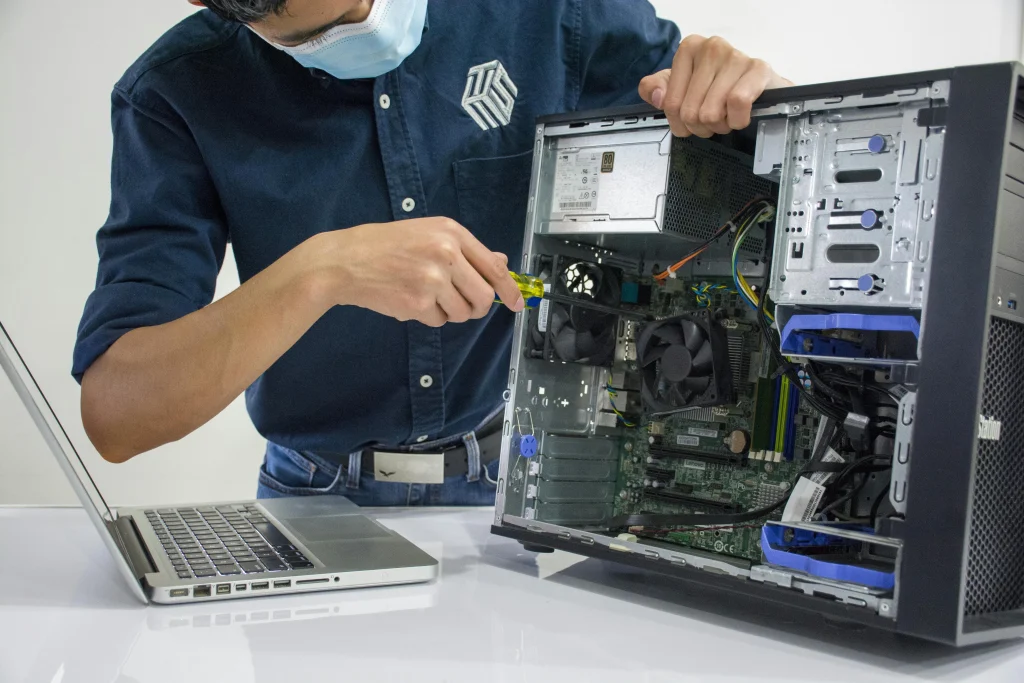
Is your PC starting to feel slow or outdated? You’re not alone. Instead of buying a new one, a PC upgrade could be the smart move—both for performance and your wallet. But when it comes to upgrading, the big question is: what parts should you actually upgrade?
In this guide, we’ll break down the most important components to consider, how each upgrade improves your computer’s performance, and what to check before making changes. Whether you’re a gamer, student, content creator, or just tired of your computer lagging, this blog’s got you covered.
Why Upgrade Instead of Replace?
Before jumping into the technical stuff, let’s answer this:
Why upgrade your computer?
Upgrading is often cheaper and faster than buying a brand-new PC. It allows you to extend your current setup’s life while boosting speed, storage, graphics, and more. Plus, small upgrades can make a huge difference—especially when paired with some basic computer repair and maintenance.
What PC Components Matter Most?
1. CPU (Central Processing Unit)
The CPU is the brain of your PC. If you’re doing tasks like video editing, gaming, or running a lot of programs at once, upgrading your processor can lead to noticeable speed improvements.
Upgrade tip: Make sure your motherboard is compatible with the new CPU. Also, check if your power supply can handle it.
2. RAM (Memory)
Not enough RAM? Your computer will struggle to multitask. Upgrading from 4GB to 8GB or 16GB can dramatically speed up your machine, especially for web browsing, spreadsheets, and design software.
Best part? RAM is usually one of the easiest and most affordable upgrades.
3. Storage Drive (SSD or HDD)
If you’re still using a traditional hard drive (HDD), switching to a solid-state drive (SSD) is a game-changer.
- Faster boot times
- Quicker file access
- Quieter performance
- Lower power usage
Upgrade tip: Consider using an SSD for your operating system and a larger HDD for extra storage.
4. Graphics Card (GPU)
Gamers and designers—this one’s for you. A better GPU means smoother frame rates, sharper visuals, and faster rendering times.
Warning: High-end GPUs need more power and produce more heat, so make sure your power supply unit (PSU) and cooling system can handle it.
5. Power Supply (PSU)
If you’re adding a new GPU or CPU, upgrading your power supply might be necessary to ensure stable performance. Look for a high-efficiency PSU with the right wattage and connectors.
6. Cooling System
Upgrades = more heat. Don’t forget your cooling system—especially if you’re planning to overclock your CPU or GPU. Better fans or liquid cooling can keep your system cool and quiet.
Bonus Upgrades You Shouldn’t Ignore
- Extra Storage: For backups, games, or large files
- Dual Monitors: Boosts productivity
- External Audio or Sound Cards: For better audio quality
- Upgraded Peripherals: Faster mouse, mechanical keyboard, better webcam
What to Do Before You Upgrade
1. Check Compatibility
Make sure your new parts match your existing hardware—check CPU socket types, RAM speed, and PSU wattage.
2. Tune-Up Your Software
Try software fixes first:
- Clean up your files
- Update drivers
- Disable startup programs
Sometimes, a quick computer repair or tune-up can bring your PC back to life without new hardware.
3. Consider Professional Help
Simple upgrades like adding RAM or an SSD are DIY-friendly. But for more complex tasks like replacing a CPU or power supply, it may be safer to ask a computer repair expert—especially if you’re not confident opening up your PC.
FAQs About PC Upgrades and Computer Repair
How do I know what to upgrade on my PC?
Start with performance issues:
- Slow loading or boot time? Get an SSD.
- Freezing or crashing? Add more RAM.
- Lagging in games? Upgrade your GPU.
- Heavy multitasking? Time for a better CPU.
Is it cheaper to upgrade or buy a new computer?
Usually, upgrading is more cost-effective—especially if your PC is under 5 years old and in good shape. You can replace the slow parts and skip the cost of a full system.
Can I upgrade my laptop like a desktop?
Some laptops allow upgrades like RAM or SSDs, but CPUs and GPUs are usually soldered. Check your laptop’s specs or ask a computer repair shop like Techtronics to assess.
Will upgrading my PC delete my files?
No—hardware upgrades won’t affect your files. Still, it’s best to back everything up just in case.
Why Choose Techtronics for Computer Repair and Upgrades?
At Techtronics, we help you get the most out of your tech—whether that’s through a simple RAM upgrade or a full system overhaul. With two convenient Manhattan locations, we offer fast, professional, and affordable computer repair and PC upgrade services.
Visit Us At:
Midtown Manhattan
248 W 35th St FL1, New York, NY 10001
Near Penn Station, Hudson Yards, Times Square
Upper West Side
2578 Broadway, New York, NY 10025
Near Columbia University and Central Park West
FAQs About Techtronics
Do I need an appointment for PC upgrades?
Nope! Walk-ins are welcome at both our Manhattan locations.Do you work on both Windows and Mac computers?
Absolutely. We handle PC and Mac upgrades, computer repair, data recovery, and more.How long do repairs and upgrades take?
Most basic upgrades like SSD or RAM installation can be done same day. More complex services may take 1–2 business days depending on part availability.Final Thoughts
A few smart upgrades can breathe new life into your old PC—making it faster, quieter, and better suited to your needs. Whether you’re gaming, working, or just browsing the web, knowing what components to focus on is the first step to a smoother experience.
And if you ever need a hand? The pros at Techtronics are here to help with trusted computer repair and upgrades across Manhattan.