
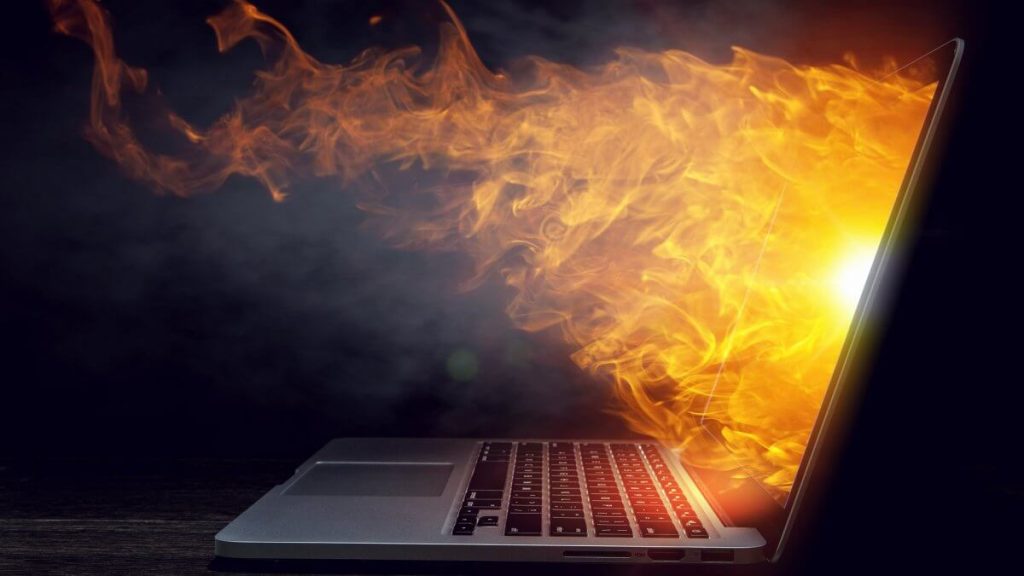
Laptop overheating is one of the most common problems users face today. Whether you use your laptop for work, school, gaming, or streaming, excess heat can slow performance, cause unexpected shutdowns, and even damage internal components if ignored. The good news is that overheating is usually preventable and fixable once you understand what causes it and how to deal with it properly.
In this guide, we will break down the main causes of laptop overheating, clear warning signs to watch out for, and simple, practical steps you can take to fix and prevent the issue. Everything here is easy to follow, even if you are not tech savvy.
What Is Laptop Overheating and Why It Happens
Laptop overheating occurs when the internal temperature rises beyond safe operating levels. Laptops are designed to handle heat, but their compact size leaves little room for airflow. When heat cannot escape properly, it builds up inside the system.
Common Causes of Laptop Overheating
1. Blocked or Poor Airflow
Laptops rely on vents and internal fans to push hot air out. If these vents are blocked by dust, furniture, or soft surfaces like beds and couches, heat becomes trapped.
2. Dust and Dirt Buildup
Over time, dust collects inside the laptop, especially around fans and vents. This blocks airflow and forces the system to work harder to stay cool.
3. Heavy Software Usage
Running demanding programs like video editing tools, games, or multiple apps at once makes the processor work harder. More work equals more heat.
4. Aging Hardware
Older laptops often struggle with heat due to worn thermal paste, aging batteries, or failing cooling fans.
5. Hot Environment
Using your laptop in a warm room or direct sunlight can raise temperatures faster than expected.
Signs Your Laptop Is Overheating
Knowing the warning signs early can help you avoid permanent damage.
Physical and Performance Signs
- The laptop feels very hot to the touch
- Fans are loud and running constantly
- System becomes slow or freezes
- Keyboard or trackpad stops responding
- Sudden shutdowns without warning
System Warnings
Some laptops display error messages warning about high temperatures. These alerts should never be ignored.
Why Loud Fan Noise Matters
A loud or constantly running fan usually means your laptop is trying to cool itself down. While fans naturally make noise during heavy tasks, excessive noise can indicate blocked vents, dust buildup, or overheating components.
How to Fix an Overheating Laptop
Step 1: Shut Down and Cool Off
If your laptop feels extremely hot, shut it down and unplug it. Let it cool for at least 15 to 30 minutes before turning it back on.
Step 2: Check and Clear Vents
Inspect all vents to make sure they are not blocked. Keep the laptop on a flat, hard surface to allow proper airflow.
Step 3: Clean Dust and Debris
Use compressed air to gently clean vents and fan openings. Avoid using household vacuums or blowing air with your mouth.
Step 4: Reduce Software Load
Close unnecessary apps and browser tabs. Check Task Manager or Activity Monitor to identify programs using too much CPU.
Step 5: Adjust Fan or Power Settings
Some laptops allow fan control through system settings or BIOS. Lowering performance mode can reduce heat during light tasks.
Step 6: Use a Cooling Pad
Cooling pads improve airflow and help lower internal temperatures, especially during extended use.
Step 7: Seek Professional Help
If overheating continues, internal components like the fan, battery, or thermal paste may need repair or replacement. Schedule your visit today: www.techtronicsmobile.com/appointments
How to Prevent Laptop Overheating
Best Practices for Daily Use
- Keep vents clean and uncovered
- Avoid using laptops on beds or couches
- Use your laptop in a cool, ventilated room
- Clean dust every few months
- Avoid running heavy software for long periods
Prevention is always cheaper and easier than repairs.
FAQs About Laptop Overheating
Why does my laptop overheat so quickly?
Fast overheating is often caused by blocked vents, dust buildup, or running too many programs at once.
Can laptop overheating damage my device?
Yes. Prolonged overheating can damage the processor, battery, and motherboard, leading to costly repairs or data loss.
Is it normal for laptops to get hot while gaming?
Some heat is normal during gaming, but excessive heat or shutdowns indicate cooling problems.
How hot is too hot for a laptop?
Temperatures above safe limits can cause throttling or shutdowns. If your laptop feels uncomfortably hot or shuts down, it is overheating.
Do cooling pads really help?
Yes. Cooling pads improve airflow and can significantly reduce surface and internal temperatures.
FAQs About Laptop Overheating
Who is Techtronics?
Techtronics is a professional technology repair and support business that specializes in laptop diagnostics, overheating repairs, and hardware maintenance.
Can Techtronics fix laptop overheating issues?
Yes. Techtronics provides fan cleaning, thermal paste replacement, battery checks, and full system diagnostics.
Does Techtronics work on all laptop brands?
Techtronics services most major laptop brands including Apple, Dell, HP, Lenovo, Asus, and more.
How do I know if I need professional repair?
If your laptop overheats frequently, shuts down unexpectedly, or makes loud fan noises even after cleaning, professional service is recommended.
Where can I bring my Overheating Laptop for Repair in Manhattan
- Midtown Manhattan
Techtronics iPhone Laptop and iPhone Repair248 W 35th St FL1
New York, NY 10001
Near 34th Street Herald Square, Penn Station, and blocks from Times Square and Hudson Yards. - Upper West Side
Techtronics iPhone Laptop and iPhone Repair2578 Broadway
New York, NY 10025
On 97th and Broadway, near Columbia University.
Laptop overheating is a common issue, but it does not have to be a serious one. By understanding the causes, recognizing early warning signs, and taking simple steps to fix and prevent heat buildup, you can protect your laptop and extend its lifespan. Regular cleaning, smart usage habits, and timely professional help can make a huge difference in keeping your device cool and reliable.
Schedule your visit today: www.techtronicsmobile.com/appointments
Top-tier Smartphone, Computer, Laptop Repair, and Data Recovery Services in NYC
At Techtronics, we offer professional, reliable, and fast service at competitive prices. Techtronics specializes in all aspects of electronic repair. With certified repair specialists skilled in integrated circuit board repair.
We stand behind our work with a 60-day guarantee. If anything goes wrong, bring it back, and we’ll make it right.
Contacts
Trains Nearby:
- F,B,D,M,Q,N,R,W @ 34 St- Herald Sq
- 1,2,3,A,C,E @ 34 St- Penn Station
- N,Q,R,W,7 @ Times Sq- 42 St
- A,C,E,1,2,3 @ 42 St- Port Authority Bus Terminal
- 7 @ 34th St-Hudson Yards
Address: 248 W 35th St, New York, NY 10001
Contact: (212) 920-6533
Email: hello@techtronicsmobile.com
Open Hours
Monday-Friday 11AM-7PM
Saturday 11AM-6PM
Sunday 12PM-6PM
Contacts
Trains Nearby:
- C,B @ 96 St
- 1,2,3 @ 96 St
- C,B @ 103 St
- 1 @ 103 St
Address: 2578 Broadway, New York, NY 10025
Contact: (212) 960-8785
Email: hello@techtronicsmobile.com
Open Hours
Monday-Saturday 11AM-7PM
Sunday 12PM-7PM
Contacts
Address: 248 W 35th St, New York, NY 10001
Contact: (212) 920-6533
Email: hello@techtronicsmobile.com
Open Hours
Monday-Friday 11AM-7PM
Saturday 11AM-6PM
Sunday 12PM-6PM
Trains Nearby:
- F,B,D,M,Q,N,R,W @ 34 St- Herald Sq
- 1,2,3,A,C,E @ 34 St- Penn Station
- N,Q,R,W,7 @ Times Sq- 42 St
- A,C,E,1,2,3 @ 42 St- Port Authority Bus Terminal
- 7 @ 34th St-Hudson Yards
Contacts
Address: 2578 Broadway, New York, NY 10025
Contact: (212) 960-8785
Email: hello@techtronicsmobile.com
Monday-Saturday 11AM-7PM
Sunday 12PM-7PM
Trains Nearby:
- C,B @ 96 St
- 1,2,3 @ 96 St
- C,B @ 103 St
- 1 @ 103 St